Chartnote Companion
What is Chartnote Companion?
Chartnote Companion creates a live connection between a Chartnote note and your EHR. When a note is pinned, the companion appears inside your EHR and displays the sections of that note along with their corresponding @section shortcuts.
This makes it easy to insert specific sections—such as Subjective, Objective, or Assessment & Plan—exactly where your cursor is while charting.
Requirements
To use Chartnote Companion, you’ll need:
The Chartnote Chrome extension installed
An active Chartnote account
Any web-based EHR
How to Pin a Note
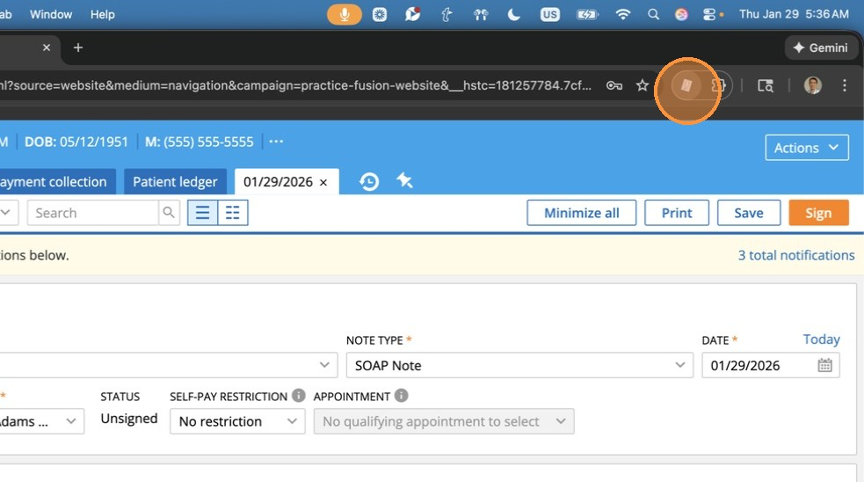
1. Open the Chartnote Chrome extension.
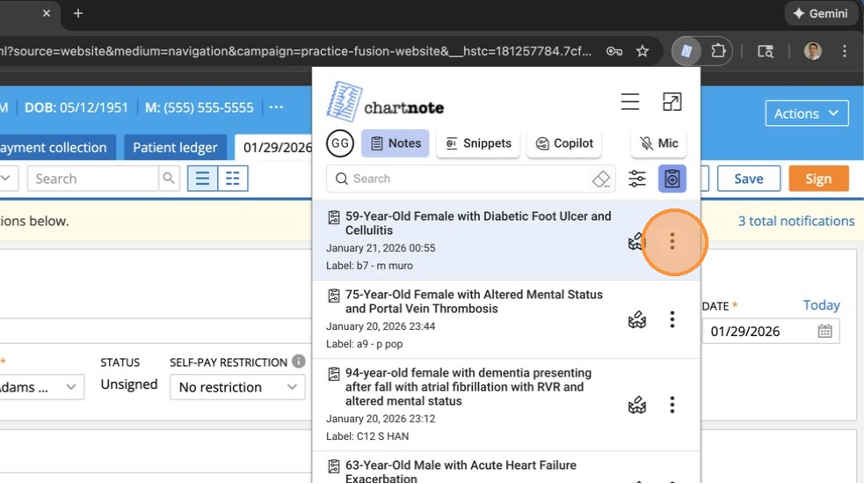
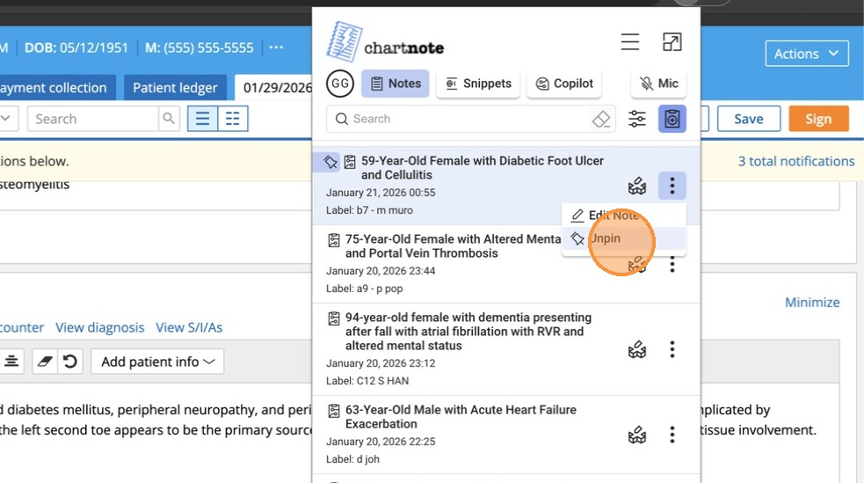
2. Locate the note you want to chart from and open the note’s menu (three dots).
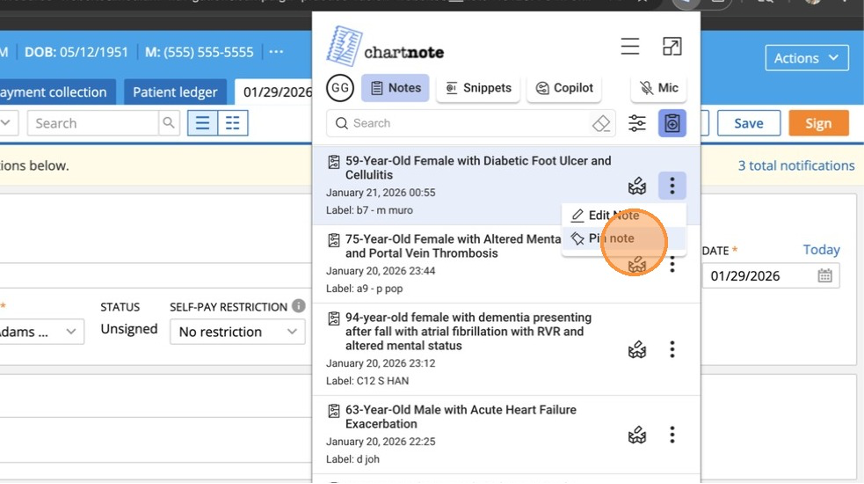
3. Select Pin note.
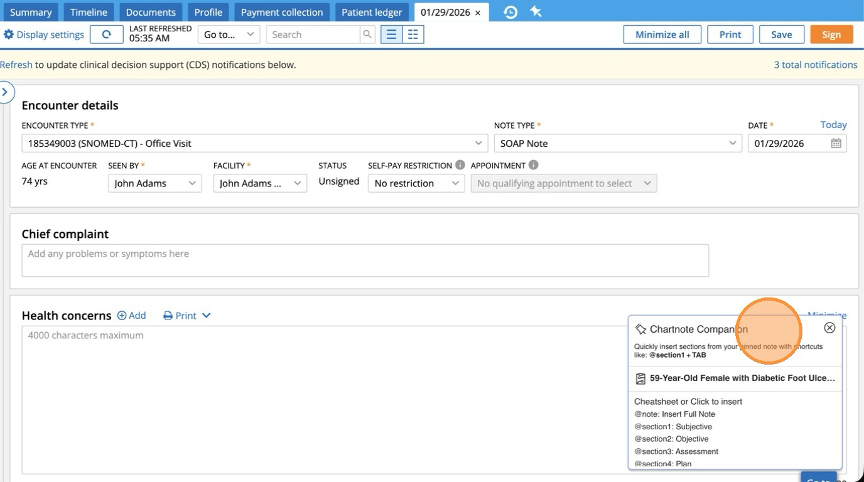
4. Once pinned, the Chartnote Companion can be shown in your EHR.
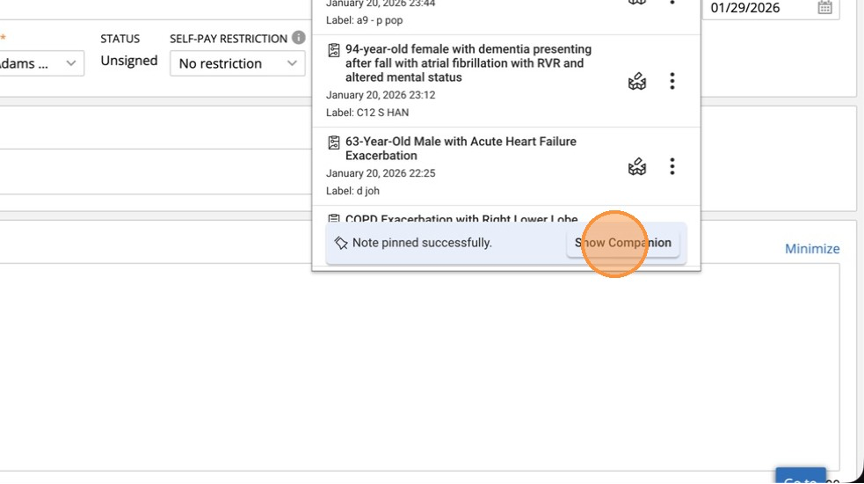
5. You can reposition this pop up or close when no longer needed.
6. You can unpin the note at any time by selecting Unpin note from the same menu.
Using the Chartnote Companion
When a note is pinned, the companion panel displays:
Each section of your note
The corresponding @section shortcut for that section
Inserting Sections Using @section Shortcuts
While charting in your EHR:
Place your cursor where you want to insert content.
Type the @section shortcut shown in the companion (for example, @section1).
Press Tab.
Chartnote will instantly insert that section of the pinned note into your chart.
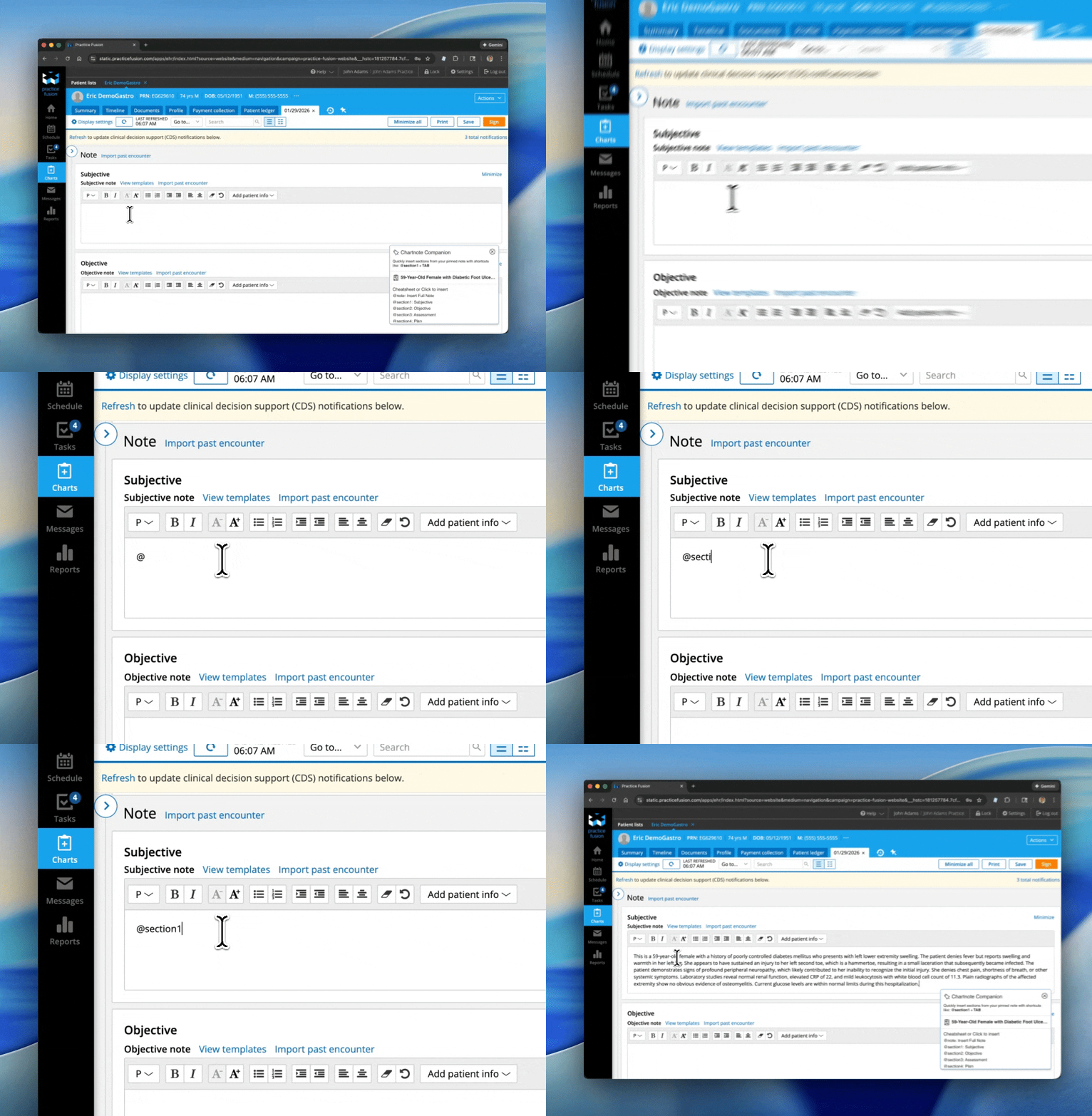
You can repeat this process for any section of the note.
While charting in your EHR:
Place your cursor where you want to insert content.
Type the @section shortcut shown in the companion (for example, @section1).
Press Tab.
Chartnote will instantly insert that section of the pinned note into your chart.
You can repeat this process for any section of the note.
Other Ways to Insert Sections
In addition to using @section shortcuts, Chartnote Companion offers two other easy ways to insert sections from your pinned note.
Option 1: Click a Section in the Companion
You can insert a section by clicking directly on it in the Chartnote Companion panel.
Open the Chartnote Companion inside your EHR
Click on the section you want to insert (for example, Objective)
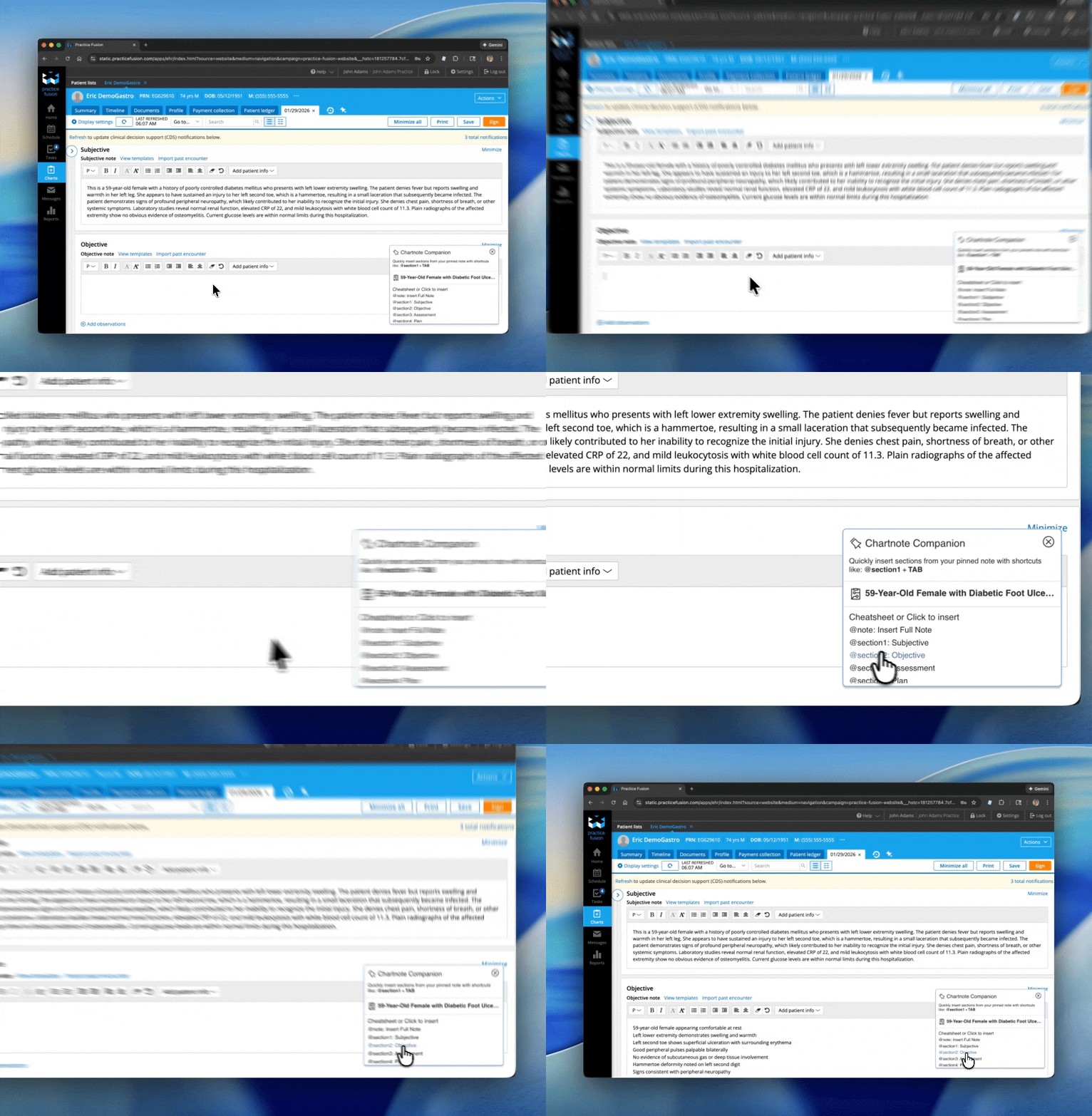
The selected section will be inserted at your cursor location in the EHR.
Open the Chartnote Companion inside your EHR
Click on the section you want to insert (for example, Objective)
Option 2: Right-Click in the EHR
You can also insert sections using the right-click menu in your EHR:
Right-click in the field where you want to insert content
Select Chartnote Companion or Pinned Note from the menu
Choose the section you want to insert
.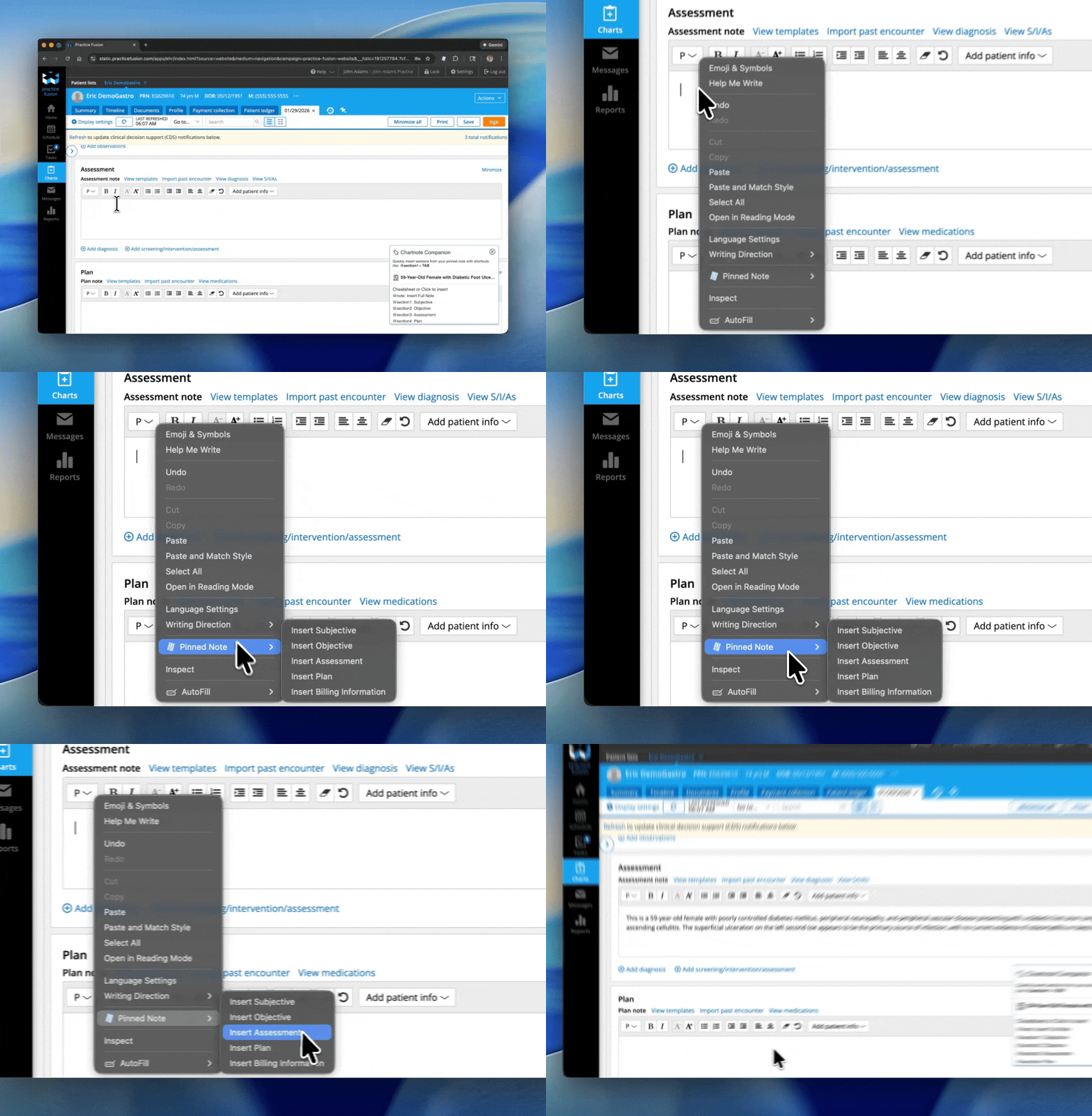
This method is especially helpful if you prefer using contextual menus while charting
Right-click in the field where you want to insert content
Select Chartnote Companion or Pinned Note from the menu
Choose the section you want to insert
Switching or Unpinning Notes
To work from a different note, simply pin a new note.
To stop using Chartnote Companion, unpin the current note.
Only one note can be pinned at a time.
To work from a different note, simply pin a new note.
To stop using Chartnote Companion, unpin the current note.
Only one note can be pinned at a time.
Tips & Best Practices
Pin your note at the start of the encounter to keep your workflow smooth.
Use the companion panel as a quick reminder of available sections and shortcuts.
If the companion isn’t visible, confirm that a note is pinned in the Chartnote Chrome extension.
Pin your note at the start of the encounter to keep your workflow smooth.
Use the companion panel as a quick reminder of available sections and shortcuts.
If the companion isn’t visible, confirm that a note is pinned in the Chartnote Chrome extension.
Need Help?
If you have questions or feedback about Chartnote Companion, please contact our support team or reach out through the Chartnote app. We’re always happy to help.
If you have questions or feedback about Chartnote Companion, please contact our support team or reach out through the Chartnote app. We’re always happy to help.