Change Your Multi-Factor Authentication Method to Email
Learn how to switch your multi-factor authentication (MFA) method from SMS text or authenticator app to email. This quick guide will help you choose the option that best fits your accessibility and security needs, ensuring you can always receive your one-time verification codes even if you don’t have access to your phone.
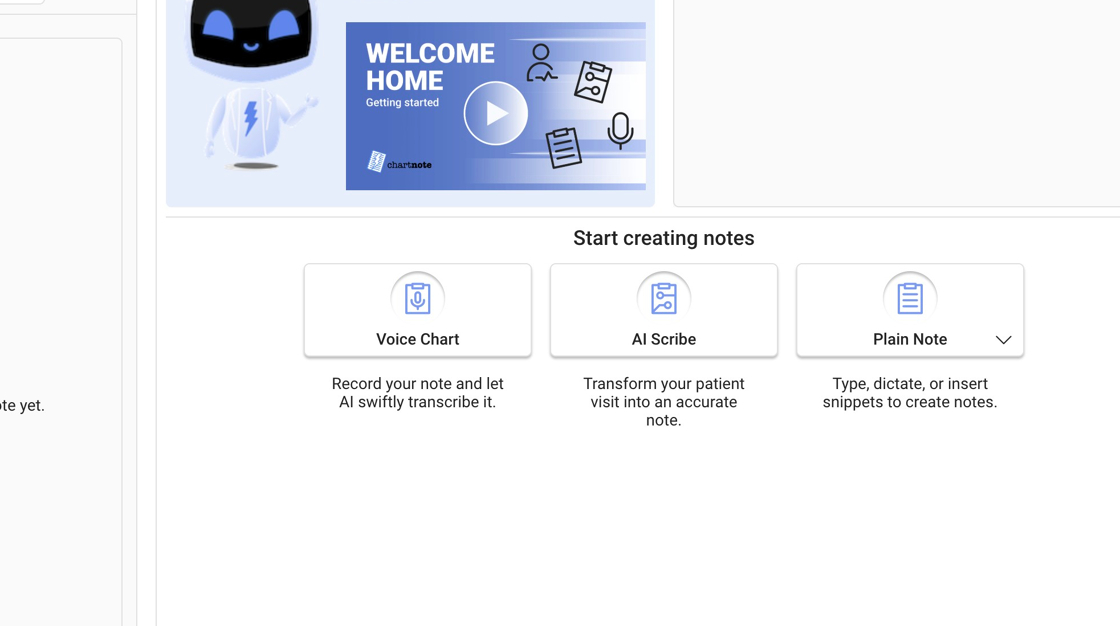
1. Navigate to Chartnote Home Page and locate your right-side dashboard.
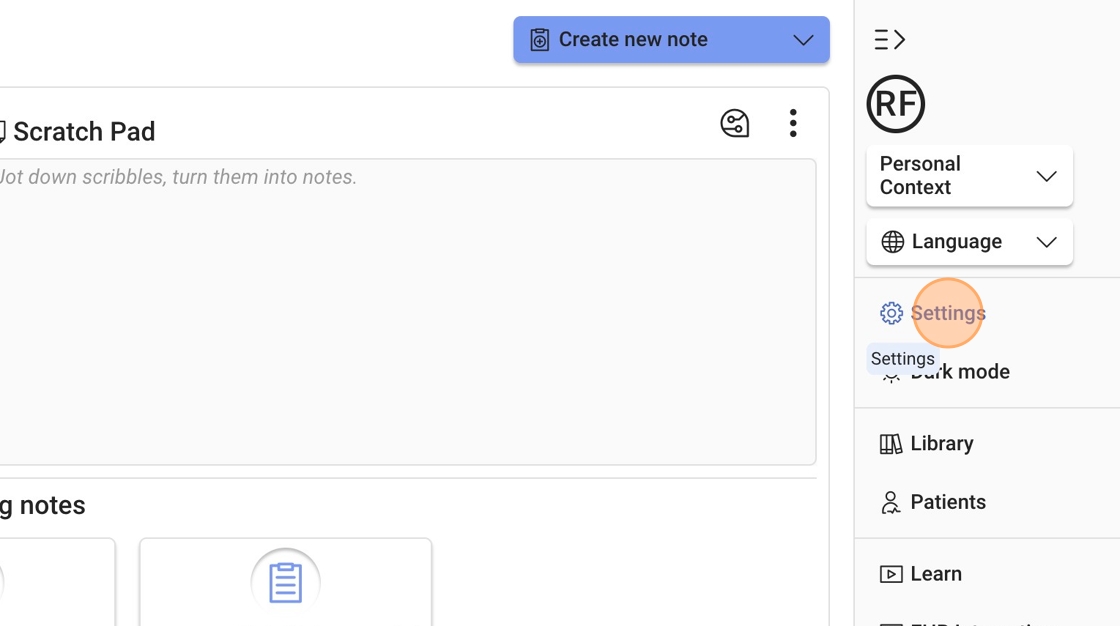
2. Click "Settings"
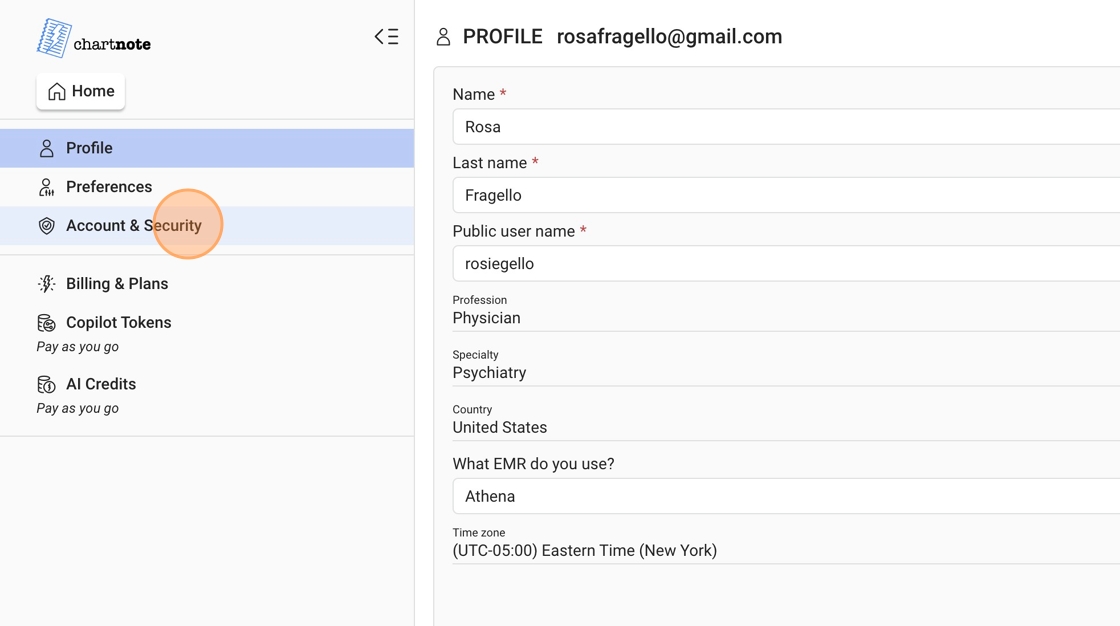
3. Click "Account & Security"
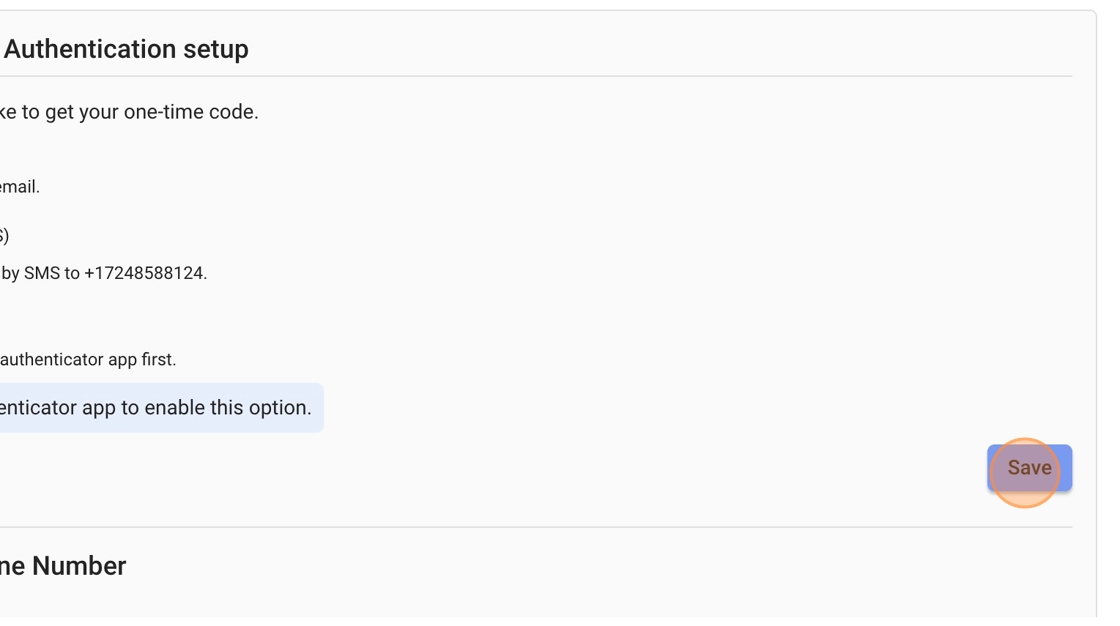
4. Under "Multi-Factor Authentication setup", select your preferred choice for receiving the one-time code.

Tip: If you won't have access to your phone, make sure to select "Email code".
5. Be sure to click "Save"
Related Articles
Multi-Factor Authentication (MFA) & Login Issues
We recently rolled out multi-factor authentication (MFA) to improve the security of your Chartnote account. This update changes the login flow on both the web app and Chartnote Mobile, and it requires a password reset and a mobile app update. This ...How to Disable Multi-Factor Authentication in Chartnote
Step 1: Log in to Chartnote Open your web browser. Navigate to the Chartnote login page. Enter your credentials to log in. Step 2: Access Settings Once logged in, locate the 'Settings' option in the menu. Step 3: Go to Account and Security In the ...Change Your Multi-Factor Authentication Method to Email or Text
Keep your account secure and easy to access by updating your multi-factor authentication (MFA) method. Use these quick steps to switch your second step to email or text (SMS) and verify it in minutes.<br> Step-by-step Guide Sign in to ...Fixing Frequent Logouts on Your Chartnote Account
How to Enable Face ID on Chartnote Mobile 1. Understanding the Logout Issue 0:01 If your Chartnote account is logging out frequently, it may be due to Face ID not being enabled. Without Face ID, the app logs out every six hours. With multi-factor ...Disconnecting Chartnote from Google Sign-In
How to Disconnect Char Not from Google Sign-In Step 1: Access Google Account Settings 0:00 Go to myaccount.google.com. Navigate to the 'Security' section. Step 2: Locate Third Party Apps 0:15 Scroll down to find 'Third Party Apps' or 'Connections to ...