Microphone Troubleshooting for Audio Transcription
Objective
This SOP provides a step-by-step guide to troubleshoot microphone issues that may prevent audio transcription from functioning properly.
Key Steps
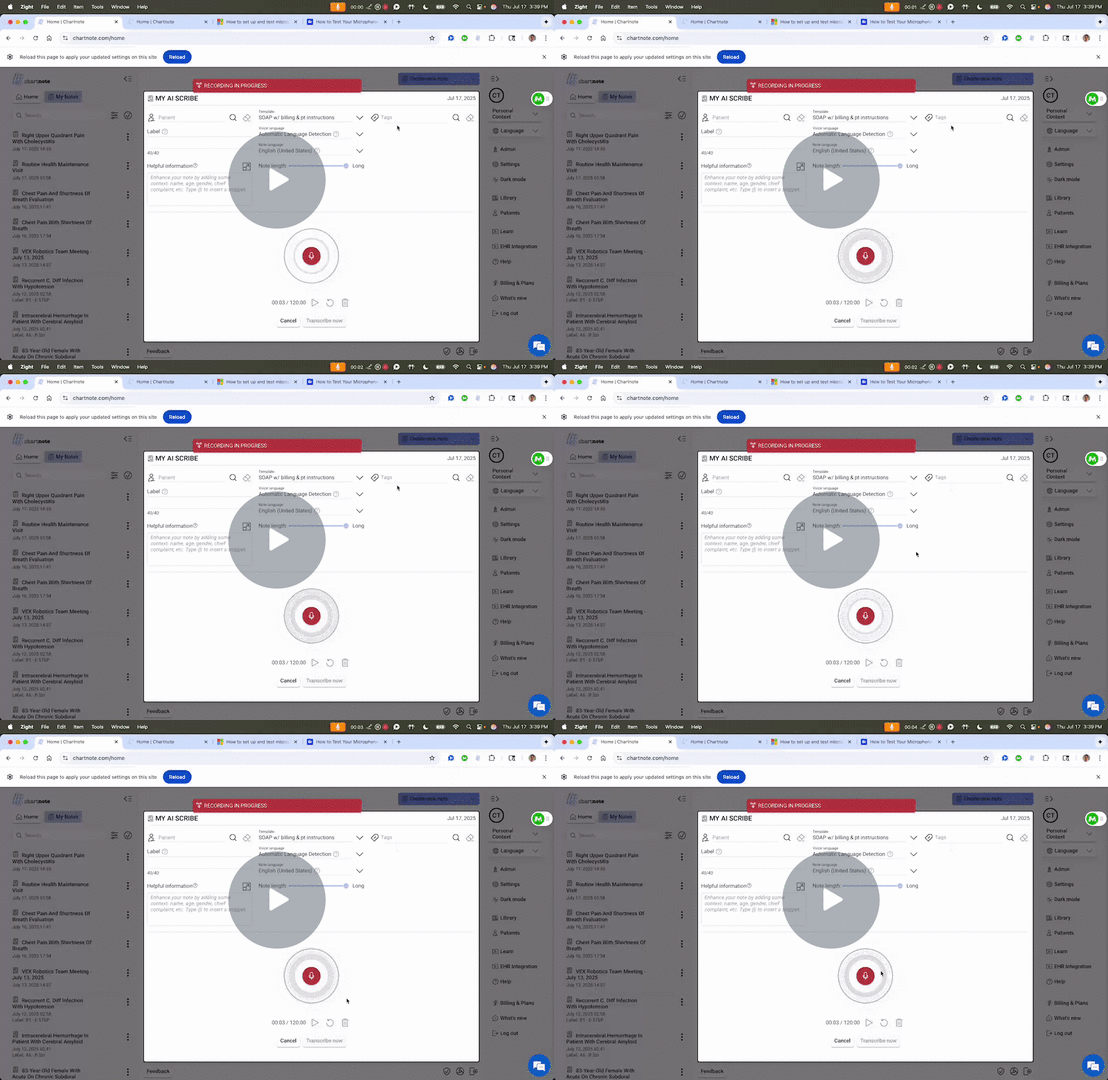
Check Transcription Button Status 0:01
If the 'Transcribe Now' button is grayed out, it indicates a microphone issue.
Ensure that the microphone is connected and functioning.
Verify Microphone Settings in Browser 0:43
Check the microphone settings in your browser:
Go to the microphone settings in the browser.
If the microphone is off, turn it on.
If it is on, click 'Manage' and select the correct microphone.
Ensure the site has permission to use the microphone.
Check Computer Microphone Settings (Windows) 1:57
For Windows users:
Go to 'Start' > 'Settings' > 'System' > 'Sound'.
Under 'Input', ensure the correct microphone is selected.
Test the microphone to see if the input bar is moving.
Access Sound Settings via Taskbar (Windows) 2:36
Alternatively, access sound settings from the taskbar:
Click the speaker icon on the lower bar menu.
Select 'Sound settings'.
Check Computer Microphone Settings (Mac) 3:04
For Mac users:
Go to 'System Settings'.
Search for 'Audio' or 'Sound'.
Ensure the correct microphone is selected and the input bar is moving.
Cautionary Notes
Ensure that all connections are secure before troubleshooting.
If the microphone is still not working after following these steps, consider testing with a different microphone to rule out hardware issues.
Tips for Efficiency
Regularly check microphone settings before starting transcription to avoid delays.
Keep a checklist of common troubleshooting steps for quick reference.
Link to Video
Related Articles
How to Enable Chat Support in Chartnote
The chat bubble located in the lower right corner of your screen when using Chartnote allows you to chat with support. However, this is only shown when you allow the cookies when you first visit Chartnote. To enable chat support, follow these steps ...Audio Processing Not Working? Ask Your IT Team to Whitelist a Required Chartnote Resource
Overview Chartnote uses advanced browser-based audio processing to prepare recordings for transcription and AI note generation. In some healthcare organizations, network security policies, firewalls, web filters, or endpoint protection software may ...Troubleshooting Audio and Microphone Issues
If your Chartnote notes are coming out empty or filled with hallucinations, the most common cause is that your microphone isn't picking up any audio. When Chartnote can't hear you clearly, it has nothing accurate to transcribe, which can result in ...Control access to camera and microphone on iPhone
This guide provides step-by-step instructions on how to control access to the camera and microphone on an iPhone. By following these steps, users can easily manage which apps have access to these features, enhancing privacy and security. Step-by-step ...Fixing Inaccurate or Hallucinated Notes
This guide walks you through the quickest fixes when your generated notes look incorrect, nonsensical, or “hallucinated.” As covered in the video, linked at the end of this article, this usually comes down to two root causes: Wrong voice language is ...